
Post Tracking lets you track engagement on any LinkedIn post - including thought leadership content, paid ads, or posts from competitors and industry influencers.
When you track a post, Teamfluence collects social signals (comments, reactions). These interactions are then added to your Monitoring tab, helping you spot potential leads and understand audience interests.
Why Use Post Tracking?
Post Tracking helps you work smarter with LinkedIn engagement. Here’s what you can achieve:
Identify engaged leads – See who is actively interacting with relevant content.
Get content insights – Learn what posts generate the most engagement so you can refine your strategy.
Track competitors – Monitor competitor activity and uncover trends or solution awareness.
How to Track a LinkedIn Post
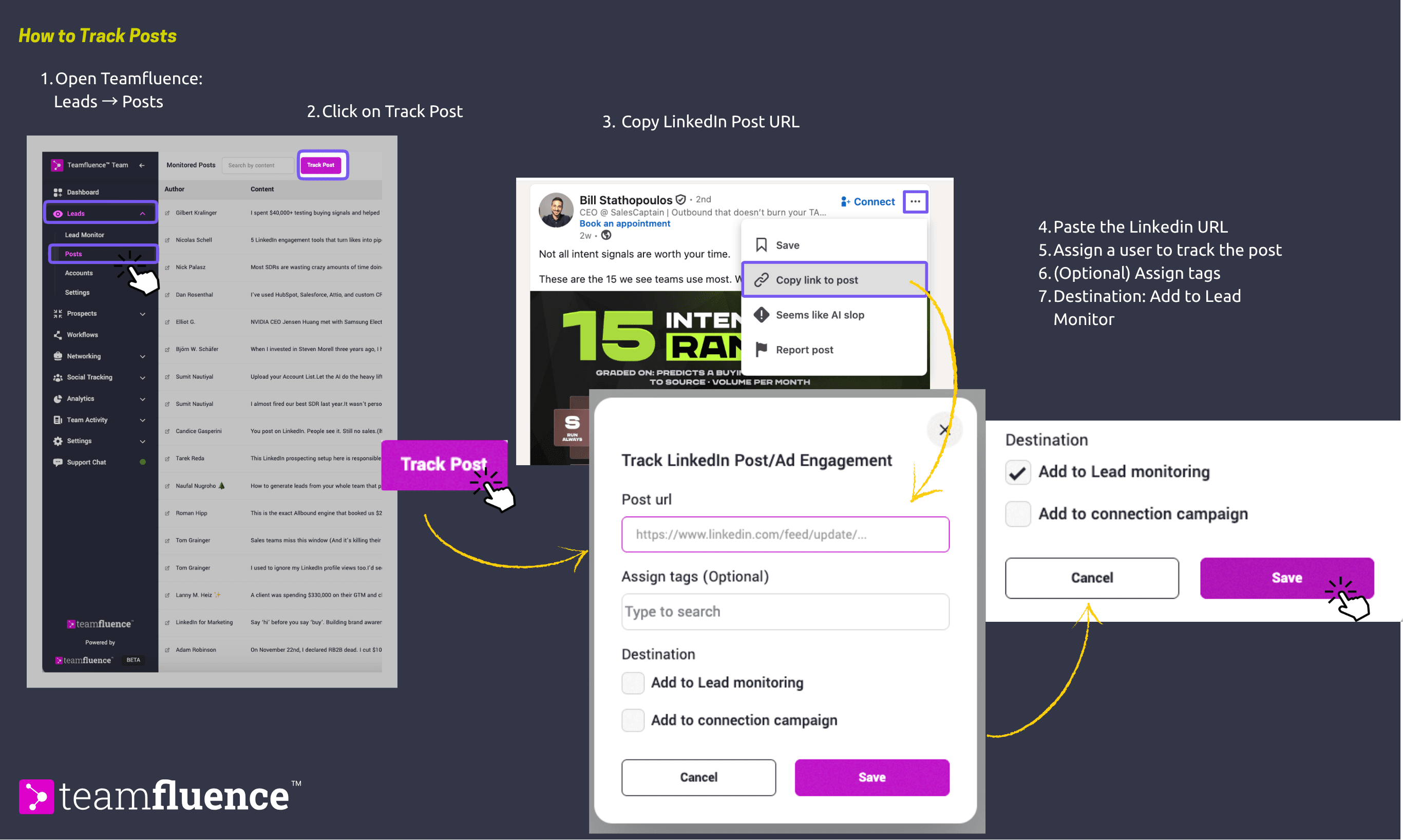
- In Teamfluence, open Leads → Posts.
- Click the Track Post button. The Track LinkedIn Post/Ad Engagement window opens.
- Paste the link into the Post url field. You can track a regular post or a LinkedIn ad.
- Assign the team member responsible for tracking this post.
- (Optional) Add tags under Assign tags to keep tracked posts organized by campaign or topic.
- Under Destination, select Add to Lead monitoring to capture engagement as signals. You can also select Add to connection campaign to connect with the people who engage.
- Click Save.
Teamfluence will begin collecting engagement signals from that post. Processing is not immediate, allow time for the data to be enriched with profile, company, and team connection information.
Note: Post tracking runs for 2 months. Any new engagement during this time will be automatically collected. Tracking can be renewed in Monitoring → Posts
How to Find the Link You Need
You only need the post URL to start tracking.
Open the post on LinkedIn, click the three dot menu in the top right corner of the post, and select Copy link to post. Paste that link into the Post url field.
Post URL Open the post, click the three-dot menu in the top right corner of the post, and select "Copy link to post."
How to Use Your Post Tracking Data
Once tracking is active, all engagement appears in your Lead Monitoring tab under the signal sources Tracked Post Reaction and Tracked Post Comment. From there you can:
Filter and qualify leads : use filters and sorting to narrow by engagement score, ICP match, ABM lead, etc.
Use Workflows : use Workflow Templates to trigger DMs, connection requests, or CRM syncs based on tracked post engagement.
Best Practices
- Avoid tracking too many posts simultaneously. Distribute tracking across team members to keep processing manageable.
- Track posts for a minimum of a few days before acting on the data, especially if the post already had existing engagement when you started tracking.
- Review tracked leads regularly and prioritize outreach before engagement cools.
- Use both your own posts and competitor posts to get a balanced view of who is active in your market.