
Turn engagement into opportunity - instantly.
Reach the right people, right now
Your network is growing, but why wait for leads to come to you when there's a ready-made audience already engaging with content in your industry?
Every day, professionals who match your ideal client profile are liking, commenting on, and reacting to posts that matter. Now, you can connect with them directly.
With just one click, you can add these engaged users to a Connection Campaign. Since they’re already showing interest, you’re not guessing: they're warm leads, ready to connect.
How to use this feature:
How to Track a LinkedIn Post
- Open the Teamfluence extension in your browser.
- Click Track Post.
- Paste the LinkedIn profile URL of the post author.
- Paste the URL of the post you want to track.
- The extension will load the post and show you the number of interactions it has found.
- Choose where to send the engagement data: push to Lead Monitoring to capture signals, or push to a Networking Campaign to connect directly with the people who engaged.
- Optionally, assign a tag to the leads before confirming. Useful for keeping tracked posts organised by campaign or topic.
- Click Track Engagement.
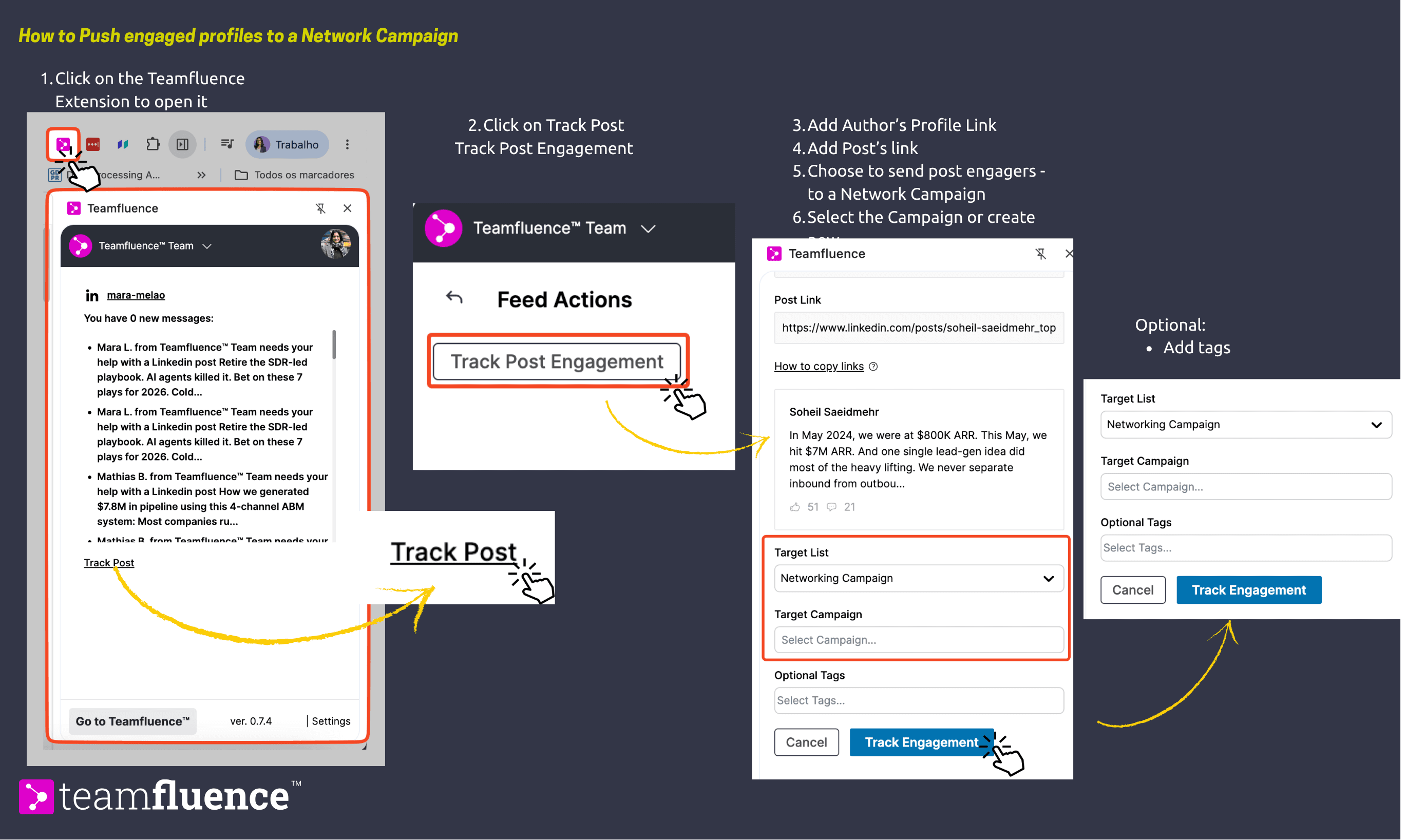
Once added, head over to Teamfluence to manage and activate your campaign. From there, you can join the campaign yourself or add other participants.
How to Find the Links You Need
Before tracking a post, you need two things: the author's LinkedIn profile URL and the post URL. Author profile URL Right-click on the author's name or profile picture anywhere on LinkedIn and select "Copy link address." This copies their profile URL directly to your clipboard.
Post URL Open the post, click the three-dot menu in the top right corner of the post, and select "Copy link to post."